MusicTrainerProf
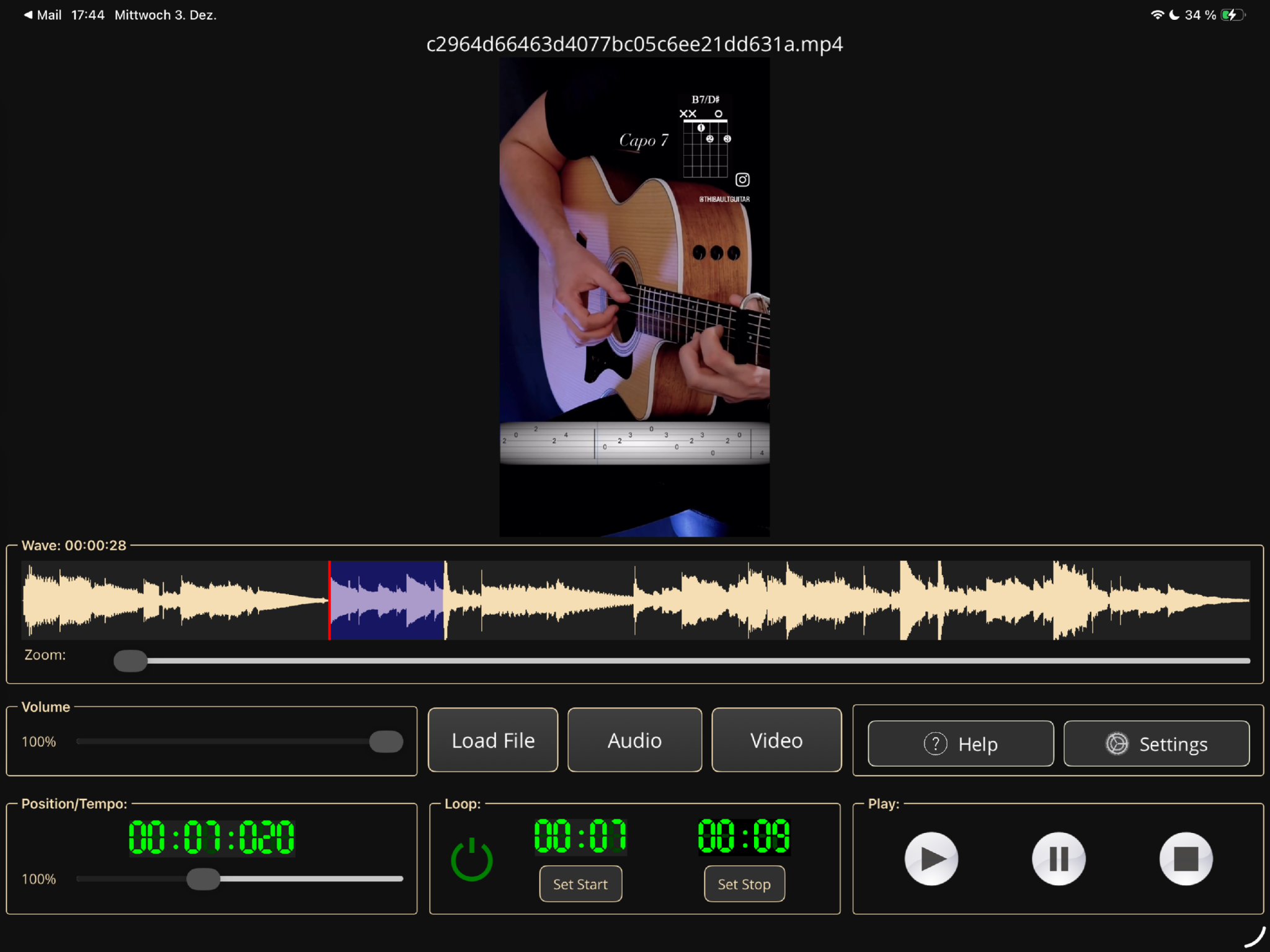
Features:
- Loads Audio-and Video Files
- Loop-Definition for training
- Loads audio/video from Media-Library or File-System
- Play speed can be changed
Download Link AppStore:
Link
Version-History:
MusicTrainerProf User Guide V1.1
1. Overview
The main use-case for “MusicTrainerProf” is to repeat specific sections of a movie or audio-file.
I (as a guitar-player in a live-band) personally need that for learning specific parts of a guitar-song.
MusicTrainerProf is currently available for:
- iOS
- MacCatalyst
The App is free - and is the first released App in a planned series of „Apps for musicians“.
Comments/Proposals/Reviews/Experiences with it are strongly welcome!
You can contact me with the e-mail: info@midiprof.de
Functionality of „MusicTrainerProf“:
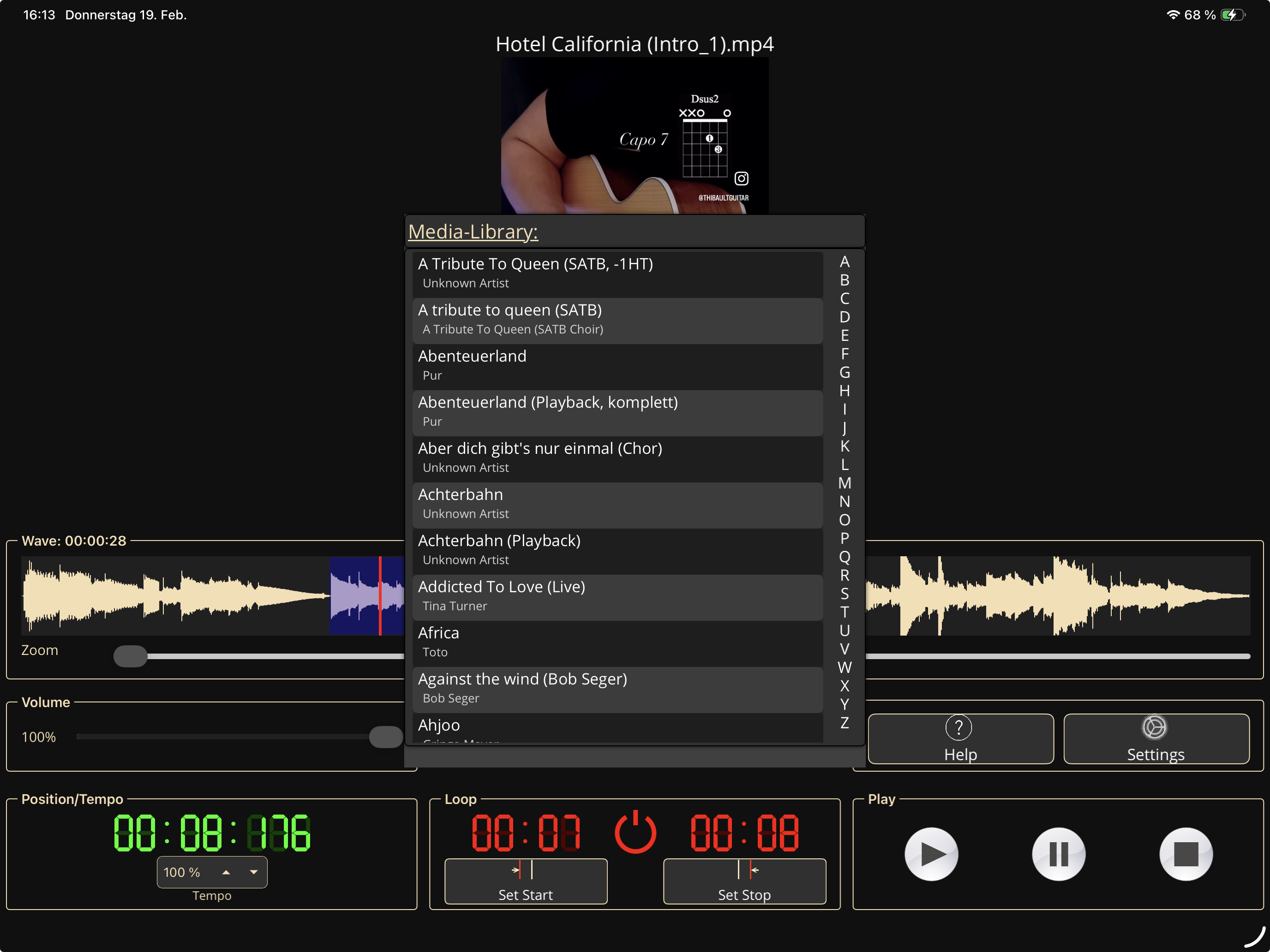
- Load music-files from the music-library.
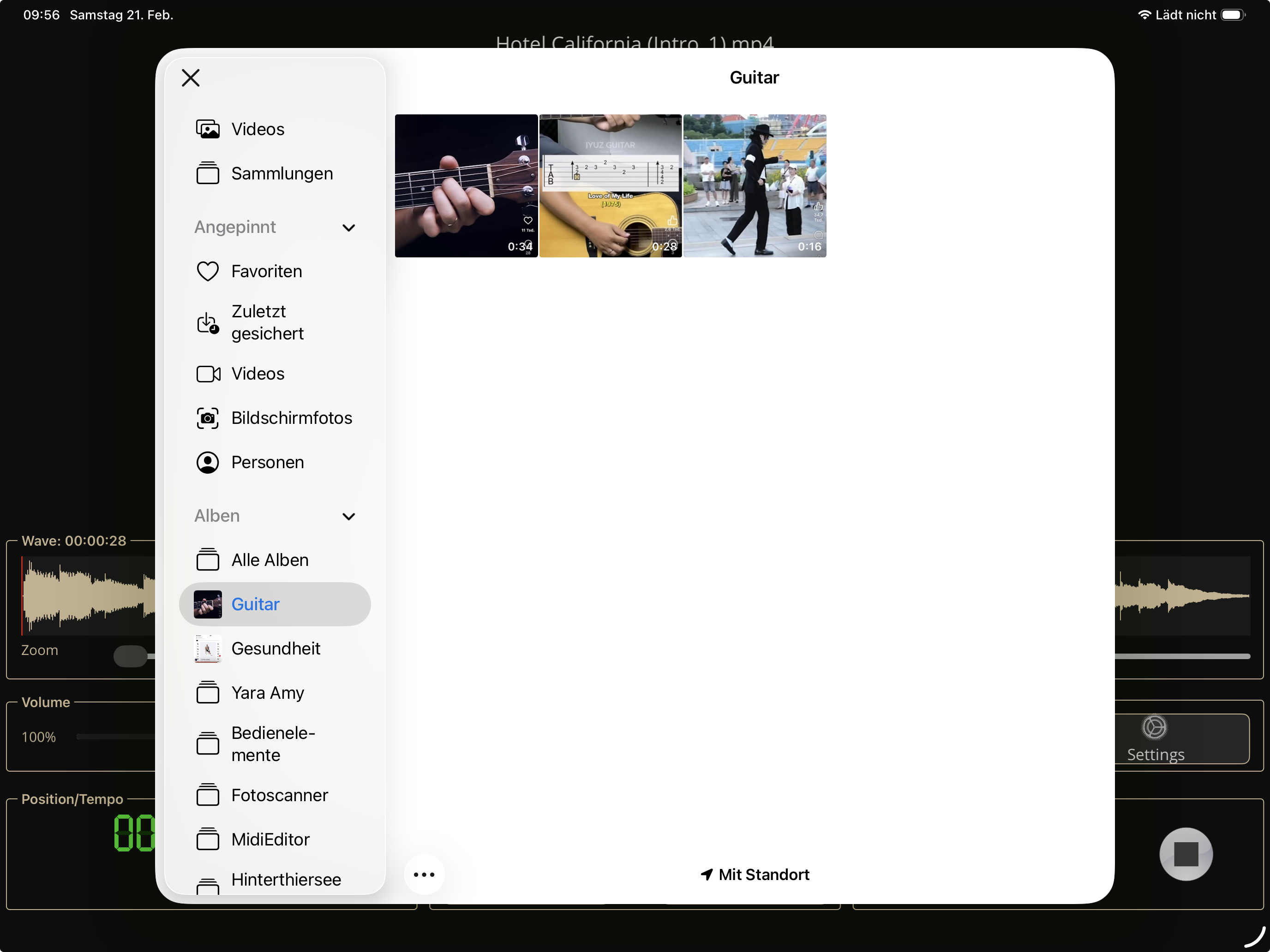
- Load video-files from the movie-Library.
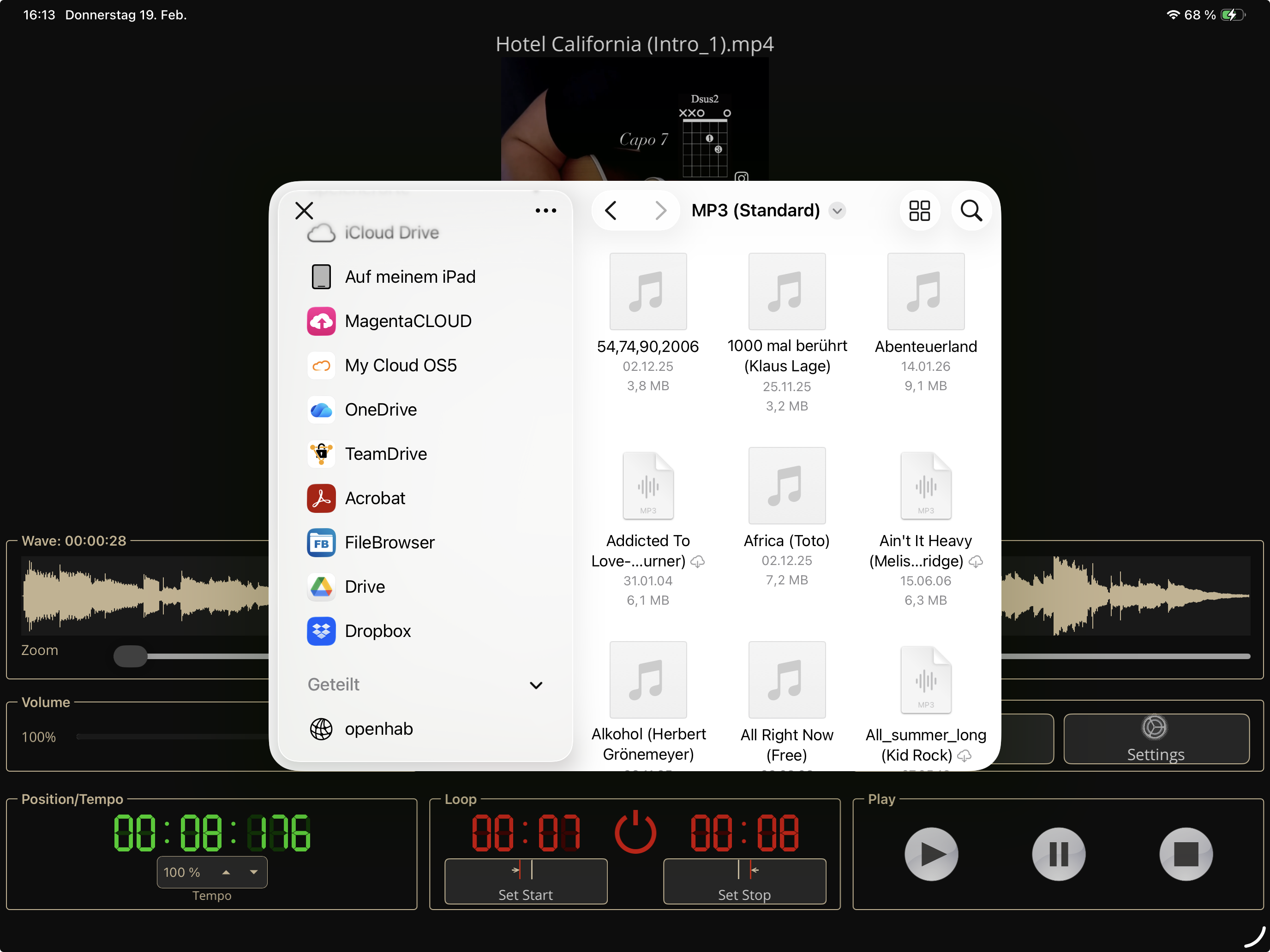
- Load music- or video-files from the file-system.
- Show the audio-content in a wave-view.
- Decrease the play-speed.
- Define an area which can be played again and again (looped).
2. User-Interface of MusicTrainerProf
2.1. Load-file dialog
With that dialog, an existing video- or audio-file can be loaded from the file-system:
2.2. Load-audio dialog
With that dialog, an existing audio-file can be loaded from the music-library:
2.3. Load-video dialog
With that dialog, an existing video-file can be loaded from the video-library:
2.4. Settings- dialog
The settings-dialog shows 3 parts:
- Language:
The User-Interface language can be selected.
- Cache:
A technical restriction for apple-devices leads to the situation, that video-files from the video-library must be copied into an App-folder.
I call that “Cache-directory”. If a video-file was already copied into that cache-area, the next access is using that “Cache-directory”. With the settings-dialog, the size of this caching-area can be seen – and it can be deleted.
- Info:
Short info about the MusicTrainerProf-version.
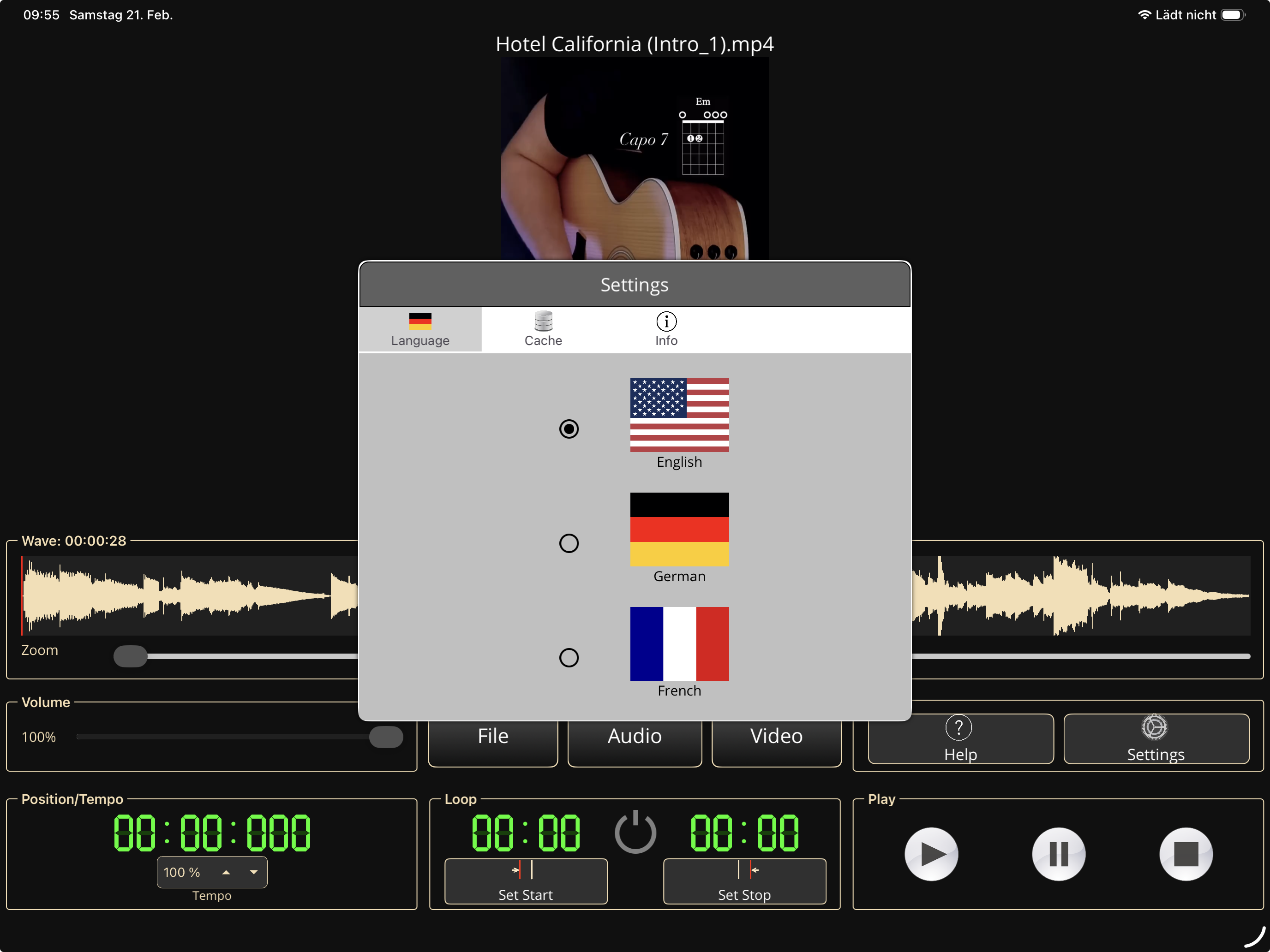
2.5. Help- dialog
The help-dialog shows this user-guide-document inside the App.
3. How to use MusicTrainerProf
3.1. Define a repeating-loop
To define and use a repeat-loop do the following steps:
- Load an audio- or video-file.
- Let the player start or set a starting-position INSIDE the wave-view (Mouse or Touch)
- Click on “Set Start”
- Let the player furthermore playing or set an ending position INSIDE the wave-view.
- Click on “Set Stop”. The defined area is marked inside the wave-view.
- Enable the loop by clicking on the loop-button:

- Also the tempo can now be slowed down with the tempo-slider.
© MidiProf